What is a passkey?
A passkey is a replacement for your password. Instead of typing a username and password to sign in, you login with a cryptographic ‘key’ that is stored on your device (e.g. your phone) and validated with your fingerprint, face scan, or a PIN. Passkeys provide greater security when logging into your LSE account.
Although this guide covers the setup on an Android phone, the process on an iPhone is similar.
Prerequisites
-
at least iOS 17 on your iPhone or iPad or at least Android 14
-
latest version of the Microsoft Authenticator app installed on your phone
-
Bluetooth enabled on computer/laptop and the phone
To set up a passkey in Microsoft Authenticator for your LSE account
On a computer, open your LSE account Security Info page at https://mysignins.microsoft.com/security-info. Sign in with your account password and MFA if prompted.
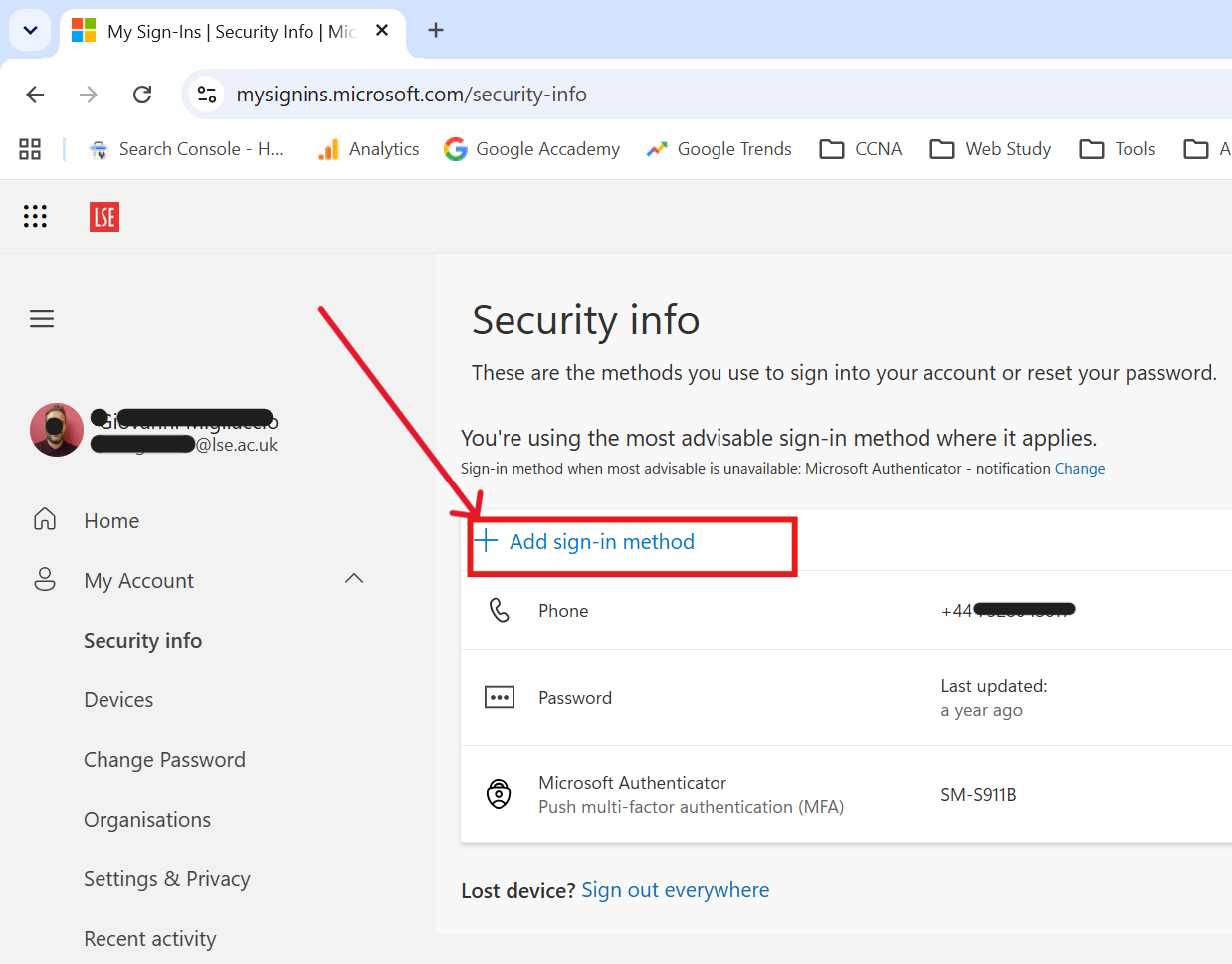
Click + Add sign-in method:
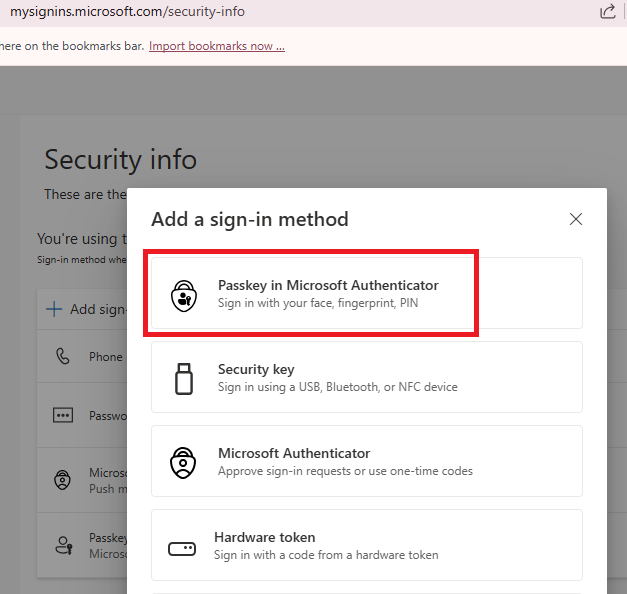
Select Passkey in Microsoft Authenticator:
If you do not already use Microsoft Authenticator for MFA, then click on the option to add your account in Authenticator.
Or click Next to continue the passkey setup:
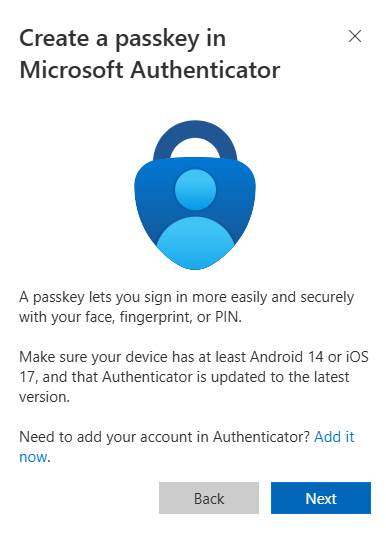
The passkey setup needs to be completed using Microsoft Authenticator on your phone. Click Next to procced:
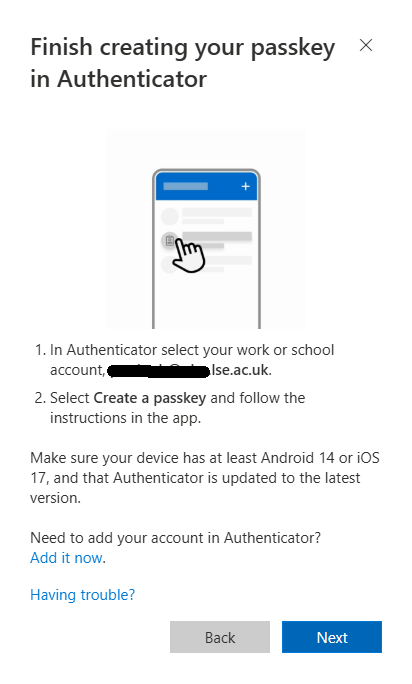
On your phone, in the Microsoft Authenticator app, open your LSE account and choose the option to Create a passkey:
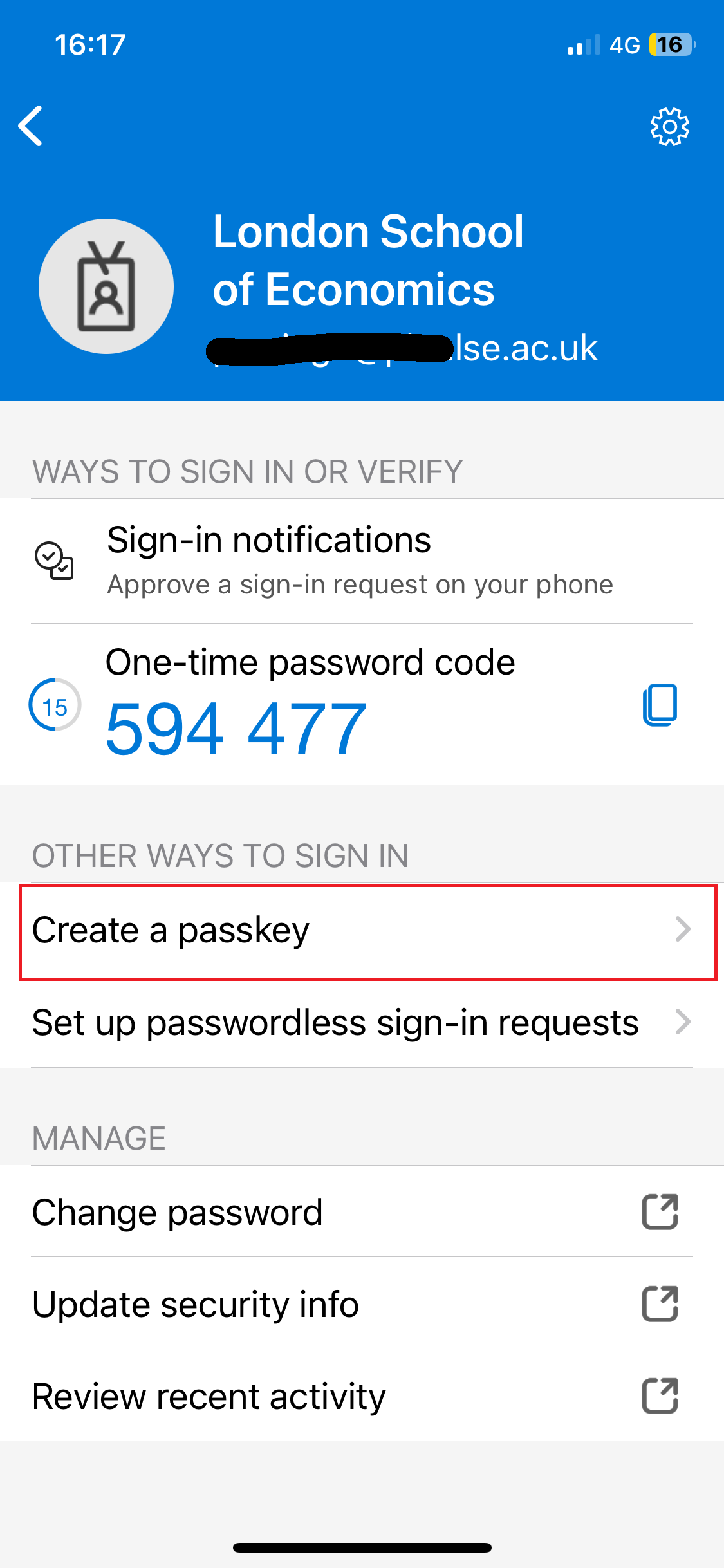
You will be prompted to sign into your LSE account which will include entering your password and validating the sign in with MFA.
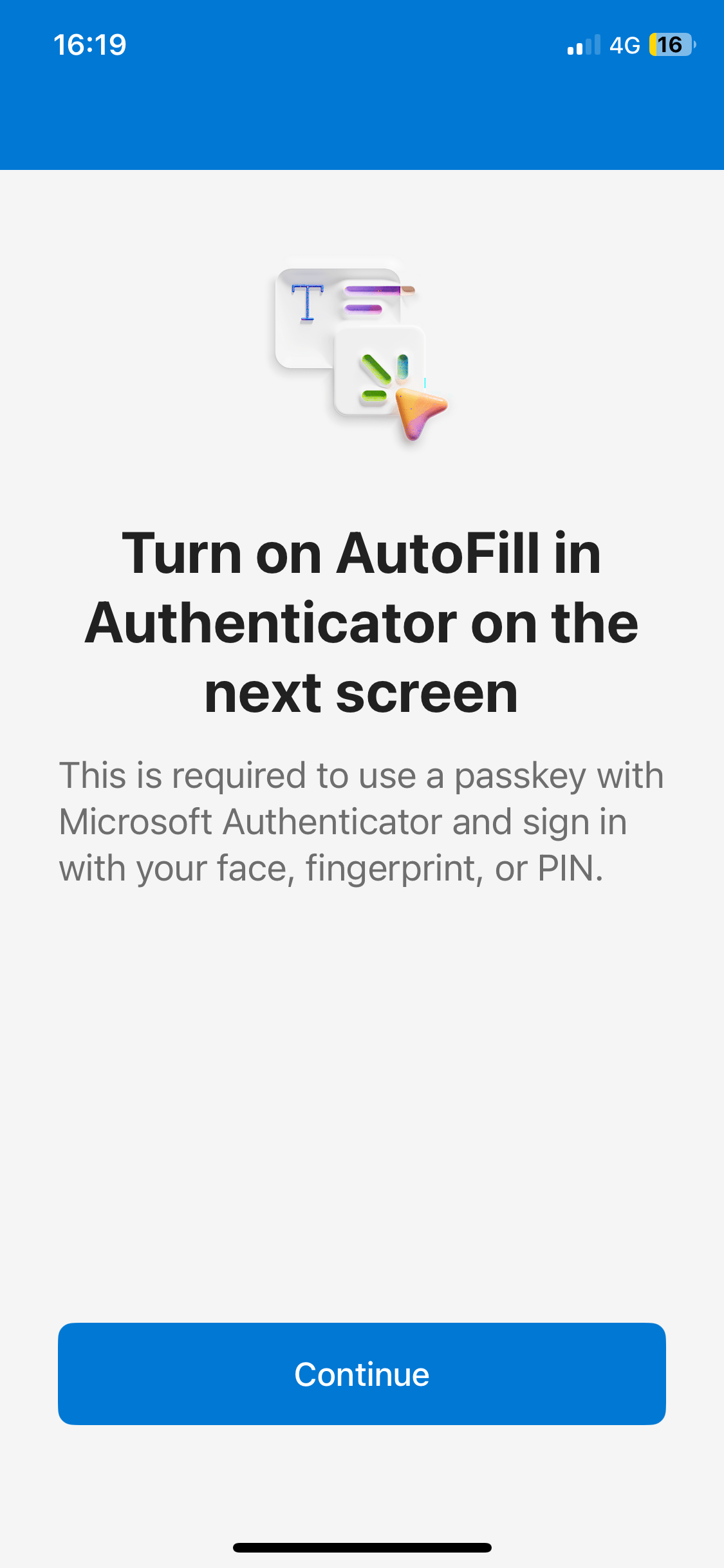
After signing into the Authenticator app, you will be notified that "Autofill" will be enabled. Click Continue:
The Authenticator app should then confirm that your passkey has been created:
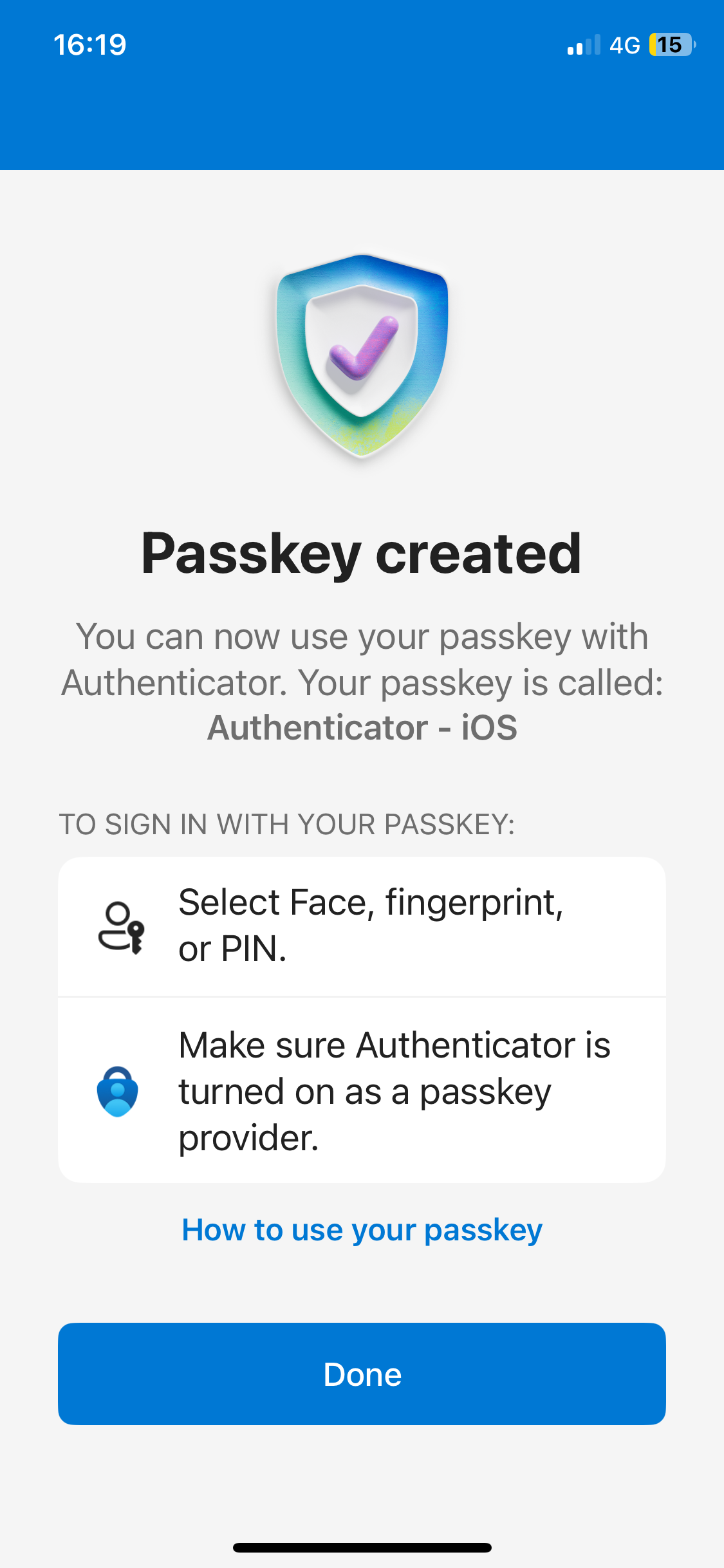
The passkey is now stored in Microsoft Autheitcator on your phone.
Logging on with your passkey
At the Microsoft Sign in box, instead of entering your email address you should click on Sign-in options:
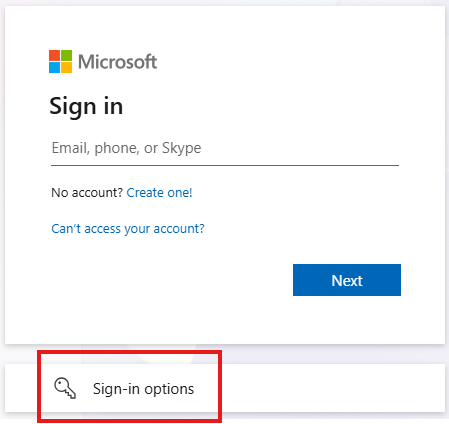
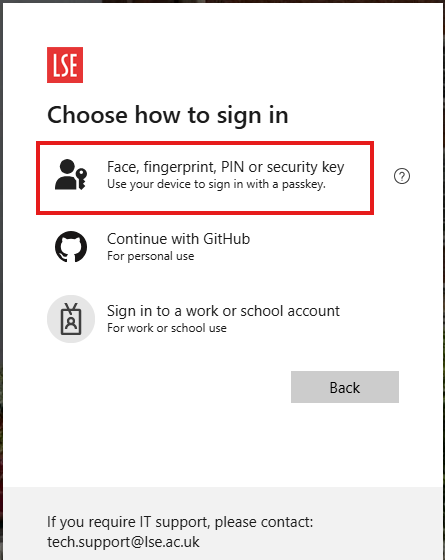
You can then choose Face, fingerprint, PIN or security key from the list of options:
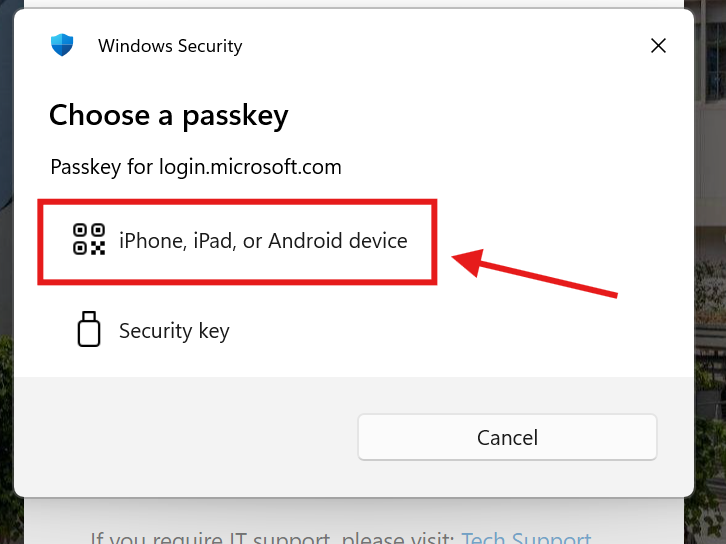
To authenticate using passkey, at a sign in prompt, select iPhone, iPad or Android device:
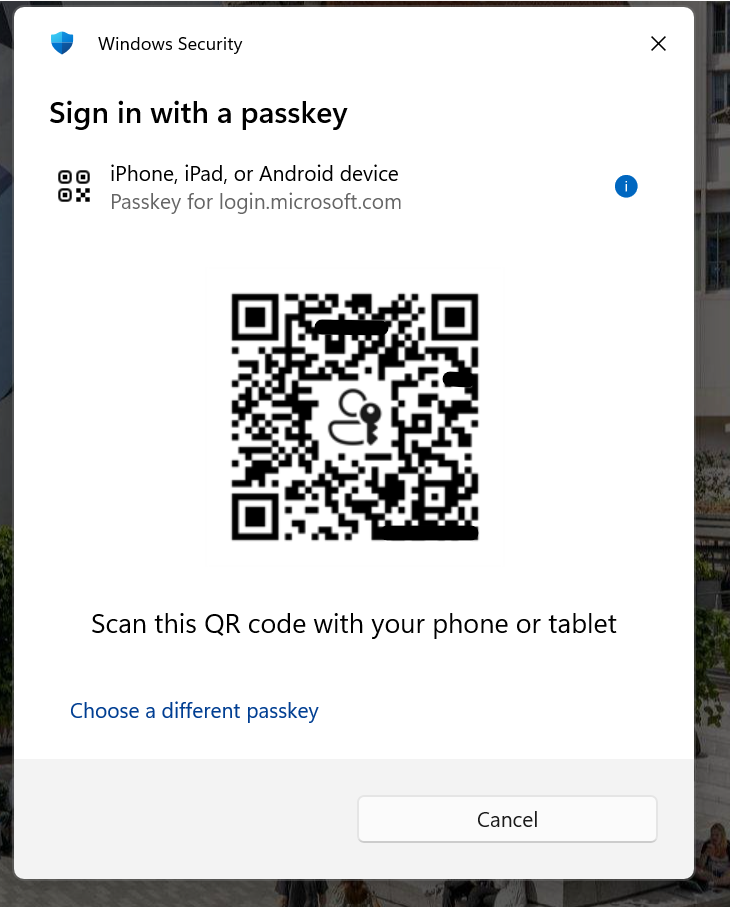
A QR code is displayed. Scan this with your phone camera:
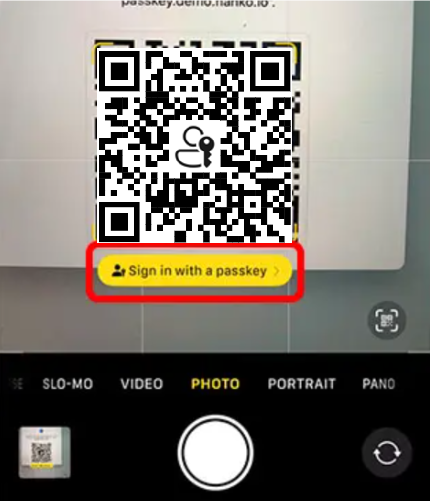
On your phone, select Sign in with a passkey to sign in. The phone will let you select the passkey stored in the Authenticator app to use for signing in. You will need to complete the authentication with your pin or biometrics.
Note that you should not need to enter your password when signing in with your passkey.