What is a passkey?
A passkey is a replacement for your password. Instead of typing a username and password to sign in, you login with a cryptographic ‘key’ that is stored on your device (e.g. your phone) and validated with your fingerprint, face scan, or a PIN. Passkeys provide greater security when logging into your LSE account.
Microsoft prompt to set up a passkey
From 1 September 2026, when logging on to an LSE account to access services such as email, Teams or SharePoint, users without a passkey will occasionally be prompted by Microsoft to create one via a pop up message titled "Let's keep your account secure" or "Protect your account"
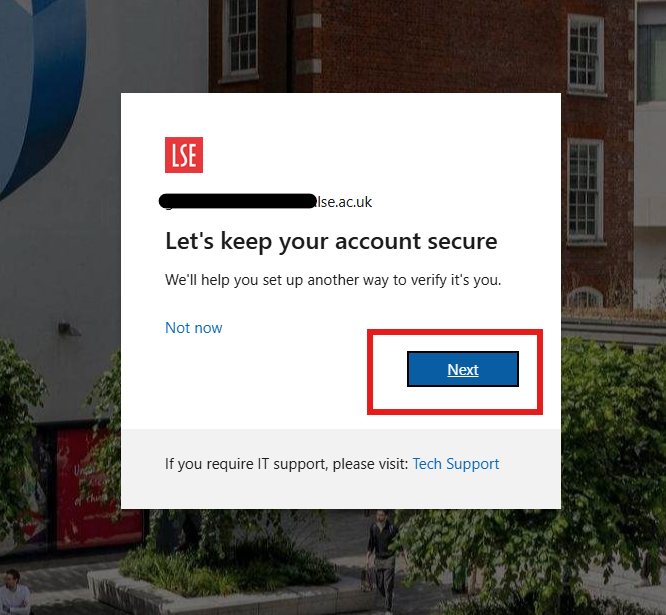
You can decide to postpone the registration by clicking on "Skip for now" or "Not now". You will be prompted again at future logins. Microsoft will cease support for sms and phone MFA methods for validating a login early in 2027 so users who login using these MFA methods will need to set up a passkey. In 2027 LSE will switch most logins to passkeys to improve security so it is advisable to set up your passkey(s) as soon as you can.
Click Next to create a passkey.
Microsoft starts the passkey creation process:
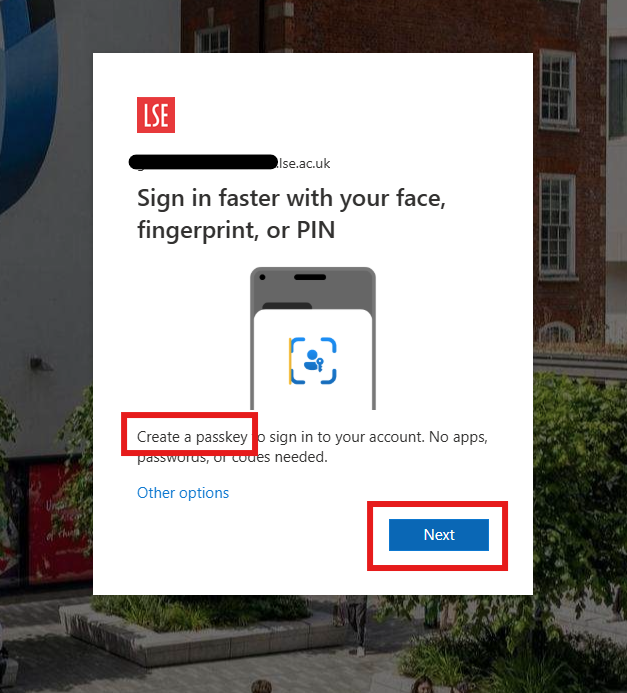
Click Next to continue.
Available options are displayed depending on the device and browser being used (Microsoft Authenticator, Windows Hello, or external passkey providers/hardware keys).
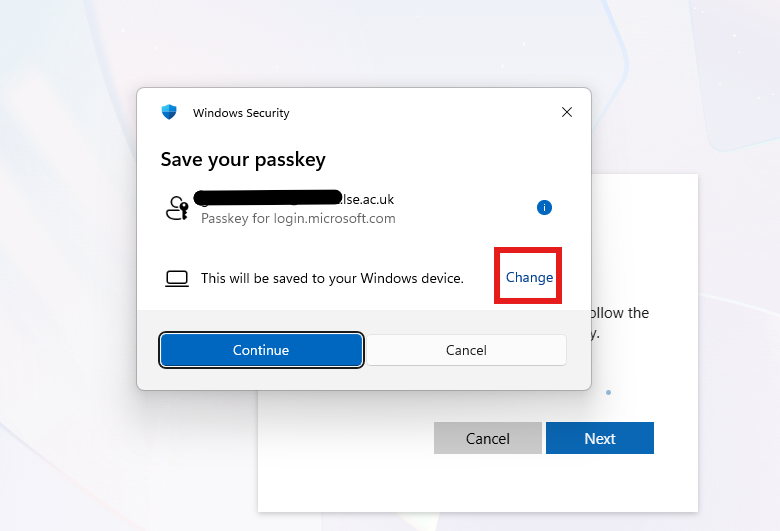
LSE's preferred option is to save the passkey in the Microsoft Authenticator app on your phone. To do this click Change to see additional methods:
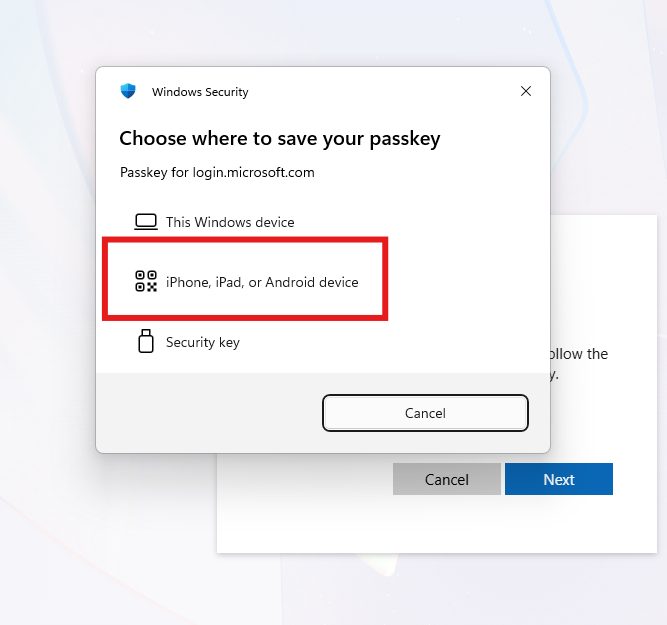 Click on iPhone, iPad, or Android device to register the passkey in the Microsoft Authenticator app.
A QR code is displayed that can be scanned with the phone's camera or by opening
Microsoft Authenticator on the phone and using the scan button to scans the QR code.
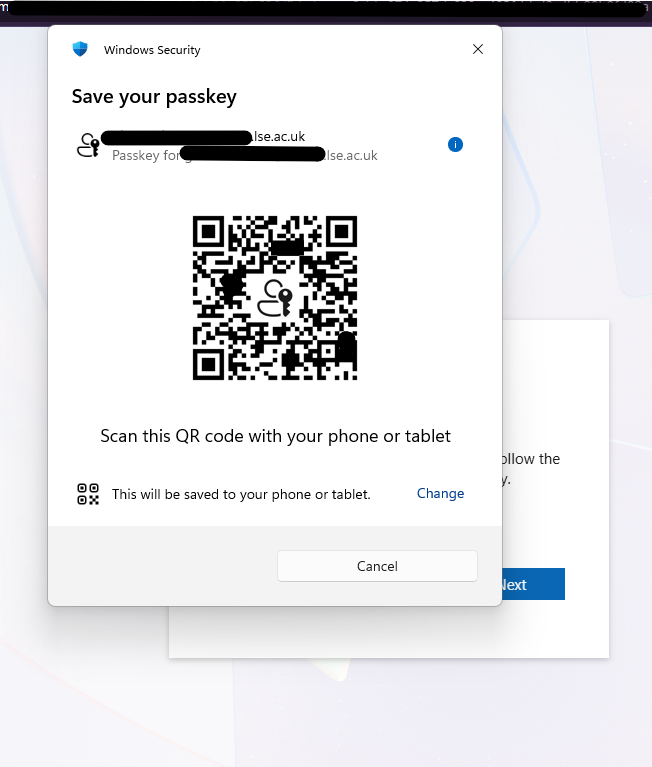 The phone will connect to your computer via Bluetooth to exchange information.
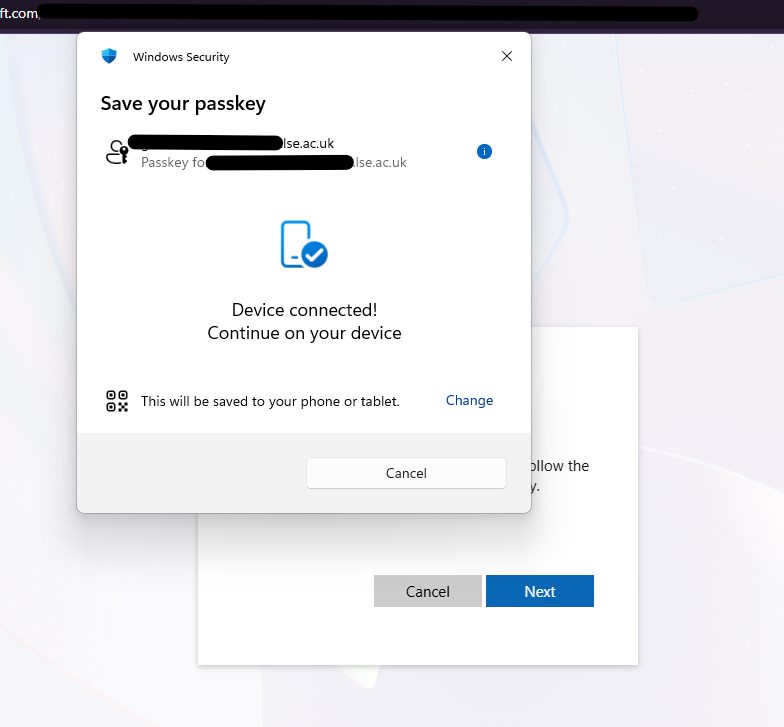
Follow the instructions on your phone to save the passkey to Microsoft Authenticator.
You can save the passkey to Apple Passwords or Google Password Manager if you prefer.
PIN or biometric (Face ID, Touch ID) verification on your phone is required to complete the passkey setup (and to use the passkey in future).
Once the passkey has been created you will be asked to give it name. Choose a meaningful name that will help you know what passkey it is (e.g. what phone or app) so you can tell it apart from other passkeys you create. You can create more than one passkey if you want. This can be helpful if you have different phones or use a password manager and a phone.
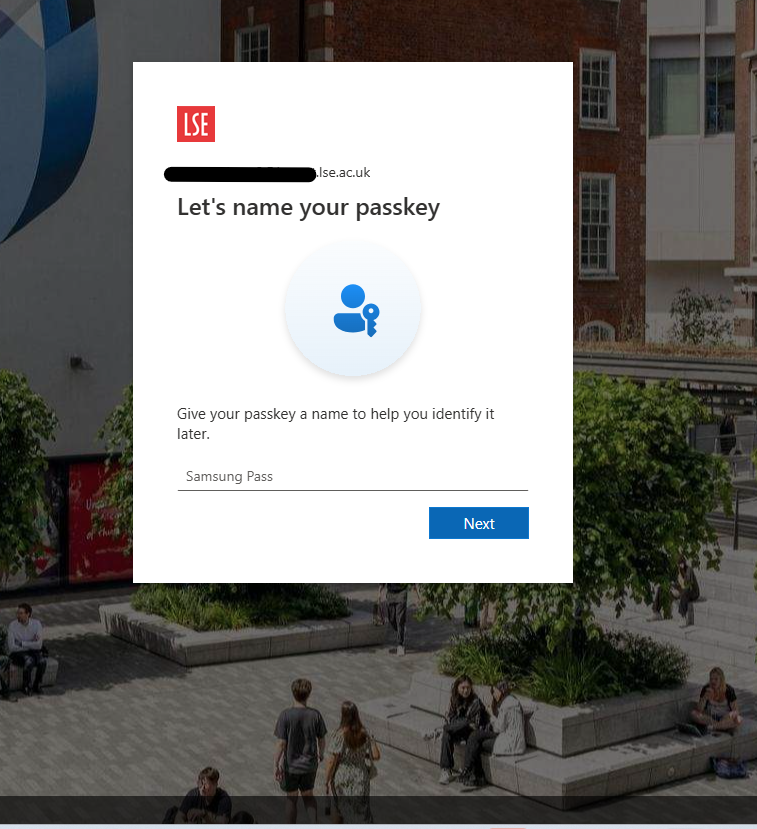
That's it. Passkey created.
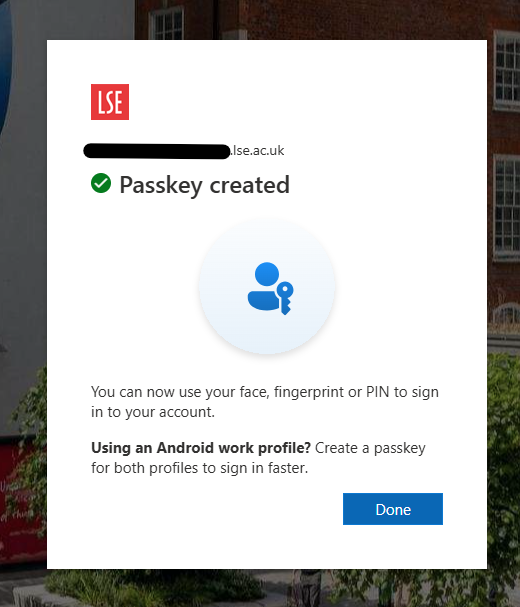
For help with logging in with a passkey see Sign-in using a passkey on your phone
Related pages
For more detailed guides for setting up passkeys in different apps see:
Setting up a passkey in Microsoft Authenticator
Setting up a passkey in Apple Passwords iCloud Keychain
Setting up a passkey in Google Password Manager